.png)
How to Create Digital Intake Forms for Grooming
Learn how to create grooming intake forms that collect the information you need efficiently.




Paper intake forms are a hassle—for you and your clients. Illegible handwriting, lost forms, and the tedium of manually entering information into your system are common problems. Digital intake forms solve all of this while collecting better information from day one.
Here's how to create and implement digital intake forms for your grooming business.
Why Go Digital?
Problems with Paper Forms
- Handwriting is often unreadable
- Forms get lost or damaged
- Information must be manually entered into your system
- Clients fill them out while you wait
- Storage becomes a nightmare
- Finding information later is difficult
Benefits of Digital Forms
- Always legible
- Data goes directly into your system
- Clients can complete before arrival
- Easy to store and search
- Professional appearance
- Better completion rates (conditional logic helps)
What Information to Collect
Before building your form, decide what you need.
Essential Information
Client details:
- Full name
- Phone number (required for reminders)
- Email address
- Address (especially for mobile groomers)
- Emergency contact
Pet details:
- Pet name
- Species (dog, cat, etc.)
- Breed
- Age/birthdate
- Weight
- Sex (spayed/neutered status)
- Color/markings
Health information:
- Vaccination status (rabies required, others preferred)
- Medical conditions
- Allergies or sensitivities
- Current medications
- Recent surgeries or injuries
- Veterinarian contact
Behavioral information:
- How does pet react to grooming?
- Any areas sensitive to touch?
- Has pet ever bitten or scratched a groomer?
- Anxiety triggers
- Preferred handling techniques
Important but Optional
Grooming preferences:
- Preferred style or cut
- Blade length preferences
- Special requests
- Products to avoid
Policy acknowledgments:
- Cancellation policy
- Matting policy
- Photo release
- Liability waiver
Skip These (Usually)
- Social security numbers (never needed)
- Excessive demographic data
- Marketing surveys (separate these)
- Redundant questions
Building Your Digital Form
Option 1: Grooming Software Built-In Forms
If your software includes form building (Teddy, MoeGo, etc.):
Pros:
- Data links directly to client profiles
- Integrated experience
- No extra cost
Cons:
- May have limited customization
Option 2: Form Builders
Tools like JotForm, Google Forms, Typeform, or Cognito Forms:
Pros:
- Highly customizable
- Often free or low cost
- Advanced features available
Cons:
- Data doesn't auto-sync to grooming software
- Requires manual transfer or integration
Option 3: Website Integration
Forms built into your website via plugins:
Pros:
- Professional appearance
- Branded experience
Cons:
- Requires technical setup
- May need ongoing maintenance
Recommendation: Use your grooming software's built-in forms if available. If not, JotForm or Typeform are excellent options.
Creating Your Form (Step-by-Step)
Step 1: Plan Your Questions
Write out every question before building. Organize into sections:
- Client contact information
- Pet basic information
- Health and vaccinations
- Behavior and handling
- Grooming preferences
- Policy acknowledgments
Step 2: Choose Question Types
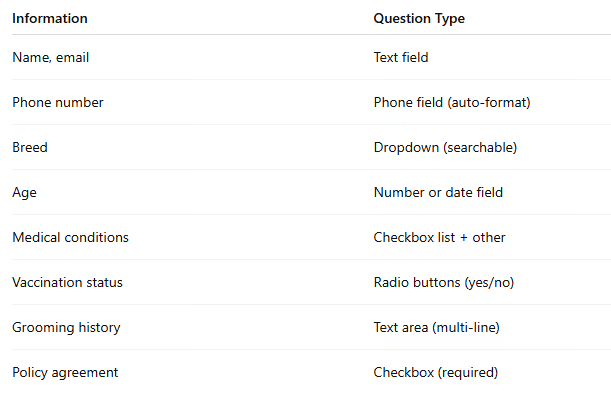
Step 3: Build the Form
- Create a new form
- Add sections/pages for organization
- Add questions with appropriate field types
- Mark required fields
- Add conditional logic if needed
- Set up confirmation/thank you message
Step 4: Add Conditional Logic
Smart forms show relevant questions based on previous answers.
Examples:
- If "yes" to medical conditions → show "please describe" field
- If "cat" selected → show cat-specific grooming questions
- If "first time at a groomer" → show additional behavior questions
- If multiple pets → duplicate pet section
Conditional logic makes forms feel shorter while collecting comprehensive information.
Step 5: Include Required Policies
Add text blocks with your policies and required checkboxes:
Cancellation policy acknowledgment:
Vaccination requirement:
Liability acknowledgment:
Photo release (optional):
Have a lawyer review any liability language.
Step 6: Test Thoroughly
Before sending to clients:
- Complete the form yourself
- Test on mobile devices
- Verify required fields work
- Check conditional logic paths
- Confirm submission goes where expected
- Test the confirmation message
Implementing Digital Forms
For New Clients
- Online booking integration: After booking, automatically send form link:
"Thanks for booking! Please complete this form before your appointment: [link]" - Website placement: Link to form on your "New Clients" page
- Appointment confirmation: Include form link in confirmation message
For Existing Paper-Based Clients
- Gradual transition: Use digital forms for new information updates; offer both options during transition
- Update request: "We're going digital! Please update your information here: [link]"
Timing
- When to send: Immediately after booking, 48-72 hours before appointment, or anytime convenient
- Deadline: Require completion 24 hours before appointment. Clients who don't complete may need to arrive early
Managing Form Responses
Direct Integration (Ideal)
If your grooming software handles forms:
- Responses populate client profiles automatically
- Review before appointments
- Data is searchable and organized
Manual Processing
If using external form builders:
- Check responses daily
- Enter key information into client profiles
- File form responses for reference
- Set up email notifications for new submissions
What to Review Before Appointments
For each new client, check:
- Complete contact information
- Vaccination status (verify documents at first visit)
- Any medical or behavioral flags
- Specific grooming requests
Flag clients needing extra attention or time.
Sample Form Structure
Page 1: Your Information
- Full name (required)
- Phone number (required)
- Email address (required)
- Street address
- City, State, ZIP
- Emergency contact name
- Emergency contact phone
Page 2: Pet Information
- Pet's name (required)
- Species (required)
- Breed (required)
- Age/birthdate
- Weight
- Sex
- Spayed/neutered? (required)
- Color/markings
Page 3: Health & Vaccinations
- Is your pet current on vaccinations? (required)
- Rabies vaccination date
- Other vaccinations (DHPP, Bordetella)
- Any medical conditions? (checkbox list)
- If yes, please describe
- Current medications
- Any allergies?
- Veterinarian name and phone
Page 4: Behavior & Handling
- How does your pet react to grooming?
- Any areas sensitive to touch?
- Has your pet ever bitten or scratched?
- What helps your pet stay calm?
- Anything else we should know?
Page 5: Preferences & Policies
- Preferred grooming style (if known)
- Any products to avoid?
- How did you hear about us?
- I acknowledge the cancellation policy
- I confirm vaccinations are current
- I have read and agree to the grooming policies
- I consent to photos being used (optional)
Frequently Asked Questions
What if clients don't complete the form?
Send a reminder 48 hours before the appointment. If still incomplete, require they arrive 15 minutes early to complete on-site (digital version on a tablet works well).
Should I still collect paper vaccination records?
Yes. Digital forms collect information; you should still verify vaccines with actual documentation at the first visit.
How do I handle updates to information?
Send periodic update requests (annually or when booking shows old info). Shorter update forms work well: "Has anything changed since your last visit?"
What about privacy and data storage?
Use secure form platforms (SSL encryption). Store data appropriately and have a privacy policy. Delete information for clients who request it or no longer visit.
Can I use forms for returning clients?
Yes—create a shorter "update" form for existing clients. Just capture changes rather than re-collecting everything.
Final Thoughts
Digital intake forms are a small investment with big returns. You'll have better information, save time, and present a more professional image to clients.
The key is keeping forms focused—collect what you need, not everything you might want. Clients are more likely to complete shorter, well-organized forms.
Make the switch and you'll never go back to squinting at handwriting again.



![Teddy vs Gingr: Complete Comparison [2026]](https://cdn.prod.website-files.com/64ac1f211014e9b293d35a4a/698dede605a81497c71168d0_Teddy%20vs%20Gingr_%20Complete%20Comparison%20%5B2026%5D.png)